Development

Ark Editor - Configuring Joomla’s Text Filtering

Configuring Joomla’s Text Filtering

IMPORTANT NOTE: Please note that your content could be deleted by Joomla regardless of the editor unless you have correctly configured your text Filters. 

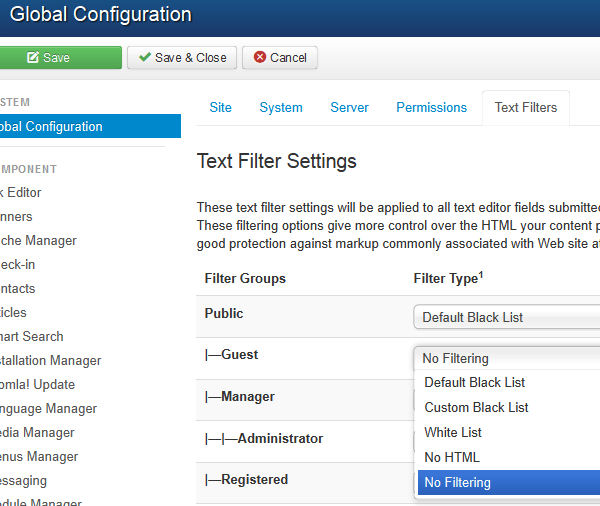
A default article filtering is imposed on all user groups. This includes the following tags: 'applet', 'body', 'bgsound', 'base', 'basefont', 'embed', 'frame', 'frameset', 'head', 'html', 'id', 'iframe', 'ilayer', 'layer', 'link', 'meta', 'name', 'object', 'script', 'style', 'title', 'xml' which could be stripped away depending upon your user privileges. You can quickly configure Joomla from stripping away your HTML tags by configuring your user groups ‘Filter Type’ to: ‘No Filtering’ or to your own preference for the respective Filter Groups.

You will find this feature in 'Global Configuration'.  Click the 'Text Filters' tab.
For more information please read Joomla’s official documentation on how to setup and configure your Article Filters:

For Joomla! 3.0 - http://docs.joomla.org/Help30:Site_Global_Configuration#Text_Filters

Read more: Ark Editor - Configuring Joomla’s Text Filtering

  • Hits: 25

Installing the ARK Editor zip download package

Installing the ARK Editor zip download package

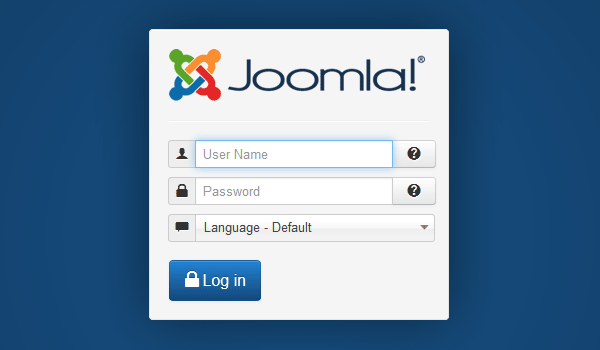
To install please go to the back-end Joomla administrator and login with your 'Username' and 'Password'.successfully installed.

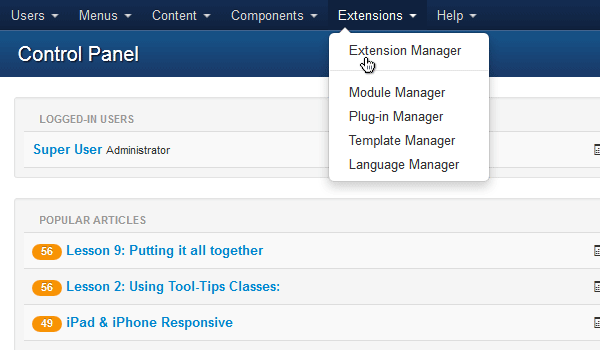
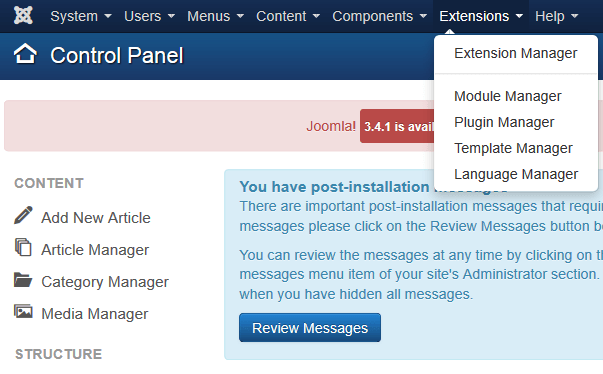
Once logged in go to 'Extensions' and click on  'Extension Manager'.

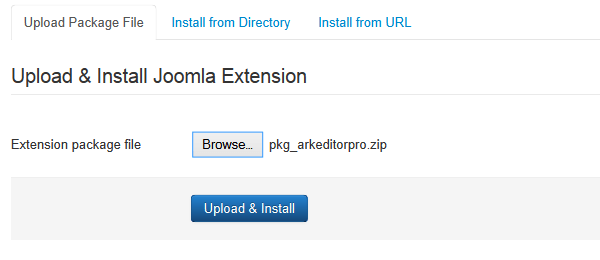
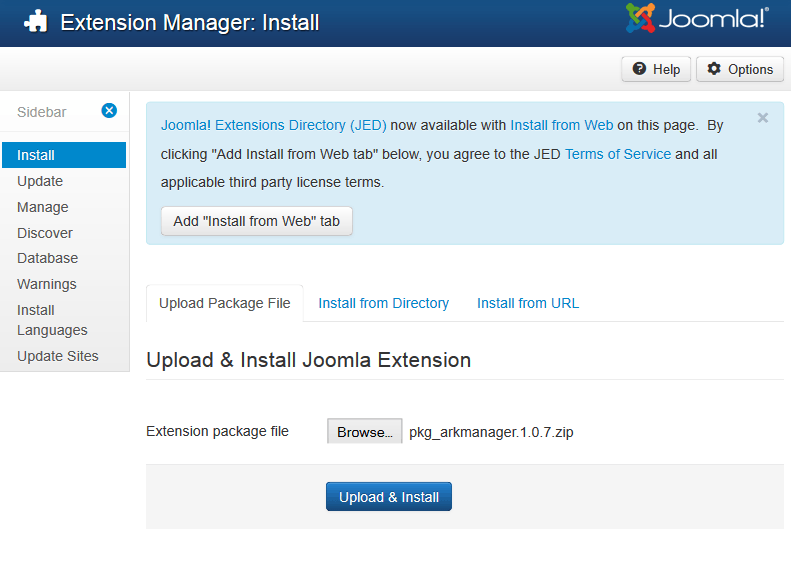
Under 'Upload Package File' click on 'Browse...', navigate to the Zip file, select it and click on 'Upload & Install'.

The system will now automatically install the Ark Editor package for you. Once completed it will inform you that the application has been successfully installed.

Read more: Installing the ARK Editor zip download package

  • Hits: 75

Ark - Installing the Ark Editor with the Extensions Manager

Installing the Ark Editor with the Extensions Manager

Learn how to install the Ark editior using the Joomla Extension Manager.

Firstly, you will need to have the Ark Extensions Manager installed. To do this:

  1. Login to the back-end Joomla administrator with your 'Username' and 'Password'.

2. Navigate to 'Extensions' and click on 'Extension Manager'.  

3. Under 'Upload Package File' click on 'Browse...' > navigate to the Zip file > select it and click on 'Upload File & Install'

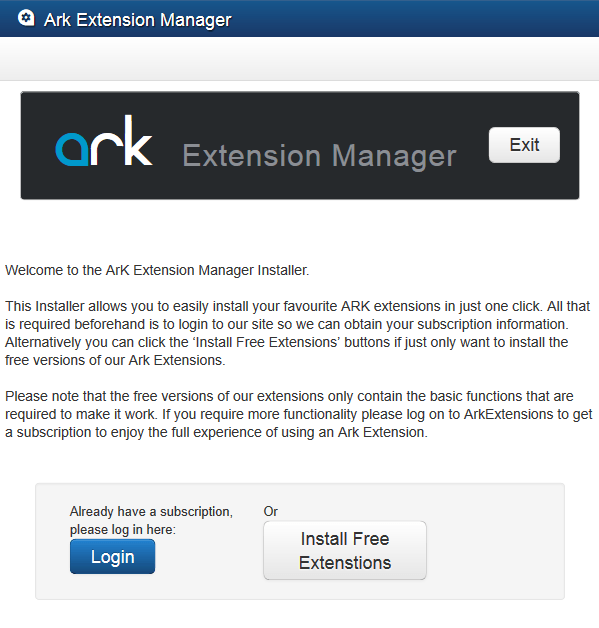
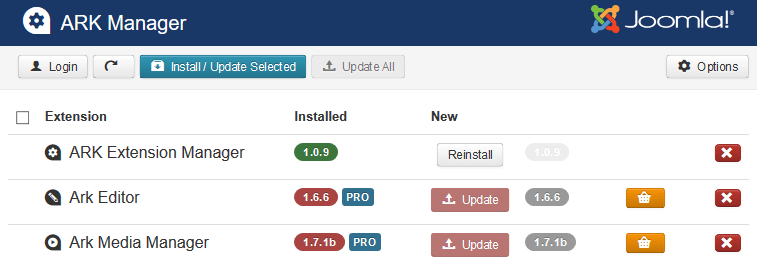
The Ark Extension Manager will now be installed and you will see the screen below.  Login by clicking on the 'Login' button.

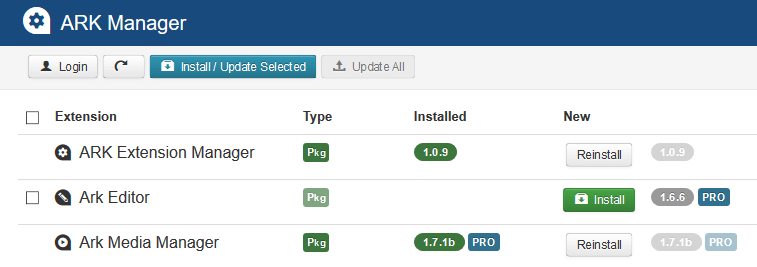
You will now be able to view extensions available for installation. To install the Ark Editor package, click on the 'Install' button. You can also update your extensions here, when updates are available.

Unable to view your subscriptions or you wish to change the user credentials

If you are unable to view your subscriptions or you wish to change the user credentials that you log in with:

  1. Navigate to 'Components' and click on 'Ark Extension Manager'. This will take you to the 'Ark Manager' screen.

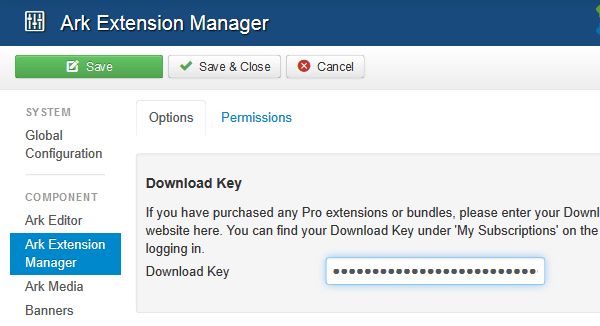
Click on the 'Options' button. This will take you to the 'Ark Extension Manager' screen.

Highlight the 'Download Key' > delete it and click on the 'Save and Close' button. This will take you back to the 'Ark Manager' screen.

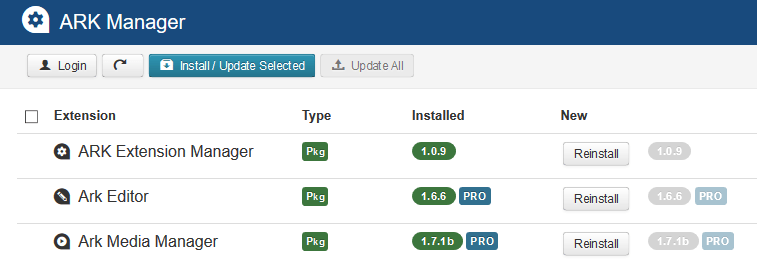
Click on the 'Login' button. You will see the screen below.

Login by clicking on the 'Login' button. You will now be able to view your subscriptions. 

Read more: Ark - Installing the Ark Editor with the Extensions Manager

  • Hits: 262

Ark - System Requirements

System Requirements

The Ark Editor has been tested to run on Joomla! 3.4+ and has the same requirements as Joomla.

Server requirements:

  • PHP 5.6 or up
  • MySQL 5 or up
  • Joomla!  3.4+

For more documentation on Joomla’s hosting requirements, please see below:

Browser support:

  • Internet Explorer: 9.0, 10, 11 and Edge
  • Firefox: latest stable release
  • Chrome: latest stable release
  • Safari: latest stable release
  • Opera: latest stable release

Mobile Environments:

  • Compatible with iOS 6+ (iPhone and iPad)

Read more: Ark - System Requirements

  • Hits: 46