Plugin Manager
Plugin Manager
The Plugin Manager controls what buttons are displayed in the editor’s interface. It allows plugins to be published, unpublished and assigned to specific toolbars with the ability to setup user permissions. In addition to these features the Plugin Manager will allow you to drill down and edit each and every plugin that makes up the Ark Editor. The plugin allows for 3 global parameters for the dialog popup screens: Height, Title and Width and you will find further customisable parameters just like any standard Joomla extension!
To locate these settings please go to 'Components' > 'Ark Editor' which will take you to the Control Panel, as seen below:

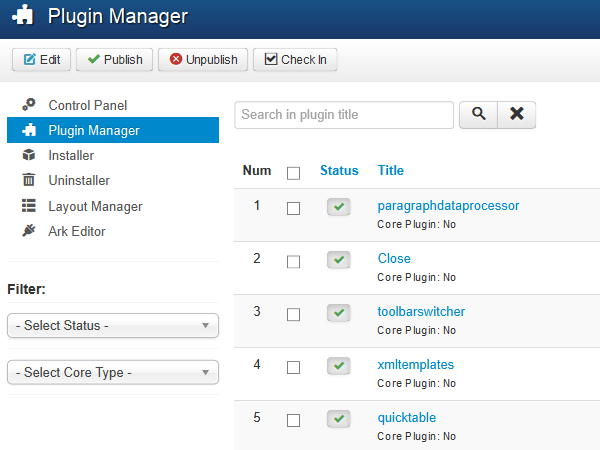
Next click on the 'Plugin Manager' icon to view the 55 plus core plugins that make up the Ark Editor by default. This works exactly the same as the default Joomla Extension or Article Manager allowing the user to filter and edit plugins. To edit a plugin's setting either tick the 'check box' and click on 'Edit' (or click on the 'Title' of the plugin), as seen below:
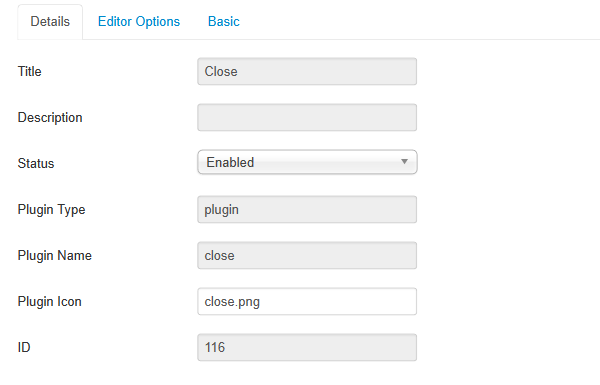
You will notice that all plugins have 3 tabs labelled 'Details', 'Editor Option', and 'Basic'.
The 'Details' tab displays the basic details of the plugin such as the name and publish state and the icon path used in the toolbar, please see below:
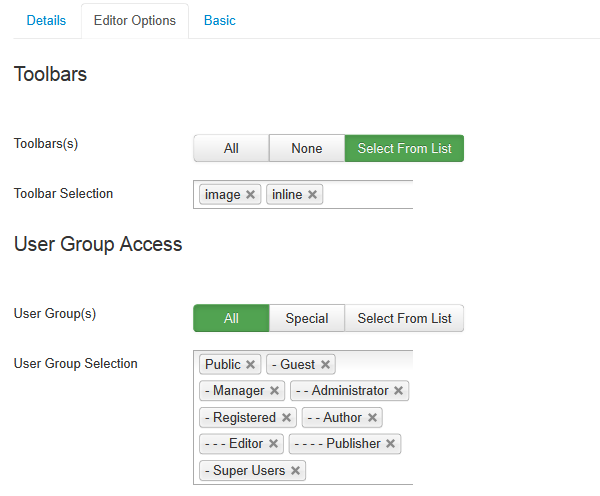
The 'Editor Options' tab gives the user the ability to assign the plugin to 'toolbars' and 'user groups'.
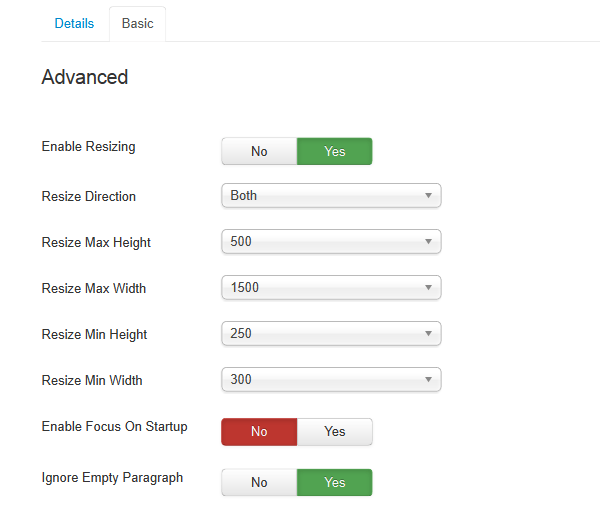
Some plugins have some more advanced options which are found under the 'Basic' tab. This can differ from plugin to plugin depending upon its purpose.
But you don’t have to stop here as the editor's architecture is totally plugin based, so you can find a wealth of other customisable settings from plugin to plugin.
- Hits: 74
 View or edit the source code of the document (for advanced users).
 Save the contents and submit its data to the server, when the Editor is placed inside an HTML form (for inline editing mode only).
 Show a preview of the document in the shape that will be displayed to end users.
 Select a layout template.
 Cut the selected text fragment to the clipboard.
 Copy the selected text fragment to the clipboard.
 Paste content copied to the clipboard along with formatting.
 Paste content copied to the clipboard without formatting.
 Paste content copied from Microsoft Word or similar applications along with formatting.
 Print document contents.
 Check spelling of the document text or turn on the Spell Check As You Type (SCAYT) feature.
 Undo or redo the most recent action performed.
 Select all contents of the document.
 Remove the formatting of the selected text.
 Maximize the editor in the browser window.
 Highlight all block-level elements in the document.
 Show information about JCK Editor.


 Apply bold, italic, underline or
 Apply superscript or subscript formatting to the text.
 Apply pre-defined combinations of various formatting options to block and inline elements.
 Apply pre-defined block-level combinations of various formatting options.
 Change the typeface of the text.
 Change the font size of the text.
 Change the color of the text.
 Change the background color of the text.
 Increase or decrease text indentation.
 Format a block of text as indented quotation.
 Create a new


 Set text alignment (left, centered, right or justified).
 Insert a divider line (horizontal rule) into the document.
 Create a numbered or bulleted list.
 Create or remove a hyperlink in the text. These features may also be used to manage file uploads and links to files on the web server.
 Link to documents.
 Insert a link anchor to the text.
 Insert an image into the document. This will cause the media manager to load up.
 Insert an Adobe Flash object into the document.
 Create a table with the defined number of columns and rows.
 Insert an emoticon image (smiley or icon).
 Insert a special character or symbol.
 Media embed is a plugin that allows users to embed YouTube, Vimeo and other media code into the editor.

