Disabling Inline Editing in Third Party Extensions
Not all third party extensions support inline editing. For most this shouldn't be a problem as they will not be editable, however some third party extensions may behave eractically so you can disable inline edting for those extensions, by following the steps below.
Navigate to 'Components' > 'Ark Editor' > and click on the 'Options' button.
This will take you to the 'Ark Editor Configuration' screen as seen below.
Navigate to 'Enable in Components' and click on the 'X' of the component/s, you wish to disable inline editing for.
Finally, click on the 'Save' button.
Inline editing will now be disabled for your chosen component/s.
Inline Editing - Using the 'noEdit' Class to Disable Module Editing
You may want to disable inline module editing, i.e because you don’t want the logo in the HTML module to be editable, as there is a link on the logo that leads back to the homepage.
If you want to disable inline editing you can add a 'noEdit' class to your custom HTML module.
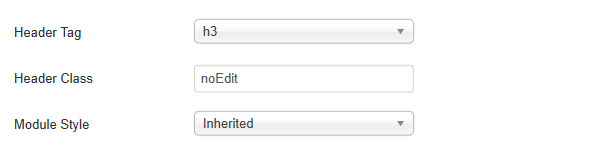
This is done by going to > 'Extensions' > 'Module Manager' > searching for your module (in this instance ‘logo’) > selecting the 'Advanced' tab and adding to ‘Header Class’ > ‘noEdit’.
From Joomla 3.4, Joomla have introduced a new user permission for frontend module editing. This change means that your users will now need to be granted permission to inline edit modules.
To do this:
Navigate to 'Extensions' > click on 'Module Manager' and click on the 'Options' button, at the top righthand side of the screen. This will take you to the 'Module Manager Options' screen, seen below.
2. Click on the user group you wish to allow to frontend edit (in my example, I have chosen 'Publisher') and under 'Frontend Editing' select 'Allowed' from the drop down list.
Click on the 'Save' button.
Your users will now be able to inline edit modules.
Inline Editing is a new technology which allows you toedit editable page elements directly.
The free version of the editor will allow you to inline edit Templates using Joomla’s framework & articles, while the paid version extends its support to 3rd party Template Frameworks and to Custom HTML Modules.
On installation ARK Editor comes with inline editing set on by default which in turn means that it will try to edit every editable page element.
When the editor is in inline editing mode you will notice a toolbar on the right hand side of your screen. When you click on the ARK editing icon the toolbar will extend out to display 3 helpful buttons.
These are:
Toolbar Button
Description
New: To create a new article in Joomla.
Save: Save changes to the content you were editing.
Disable/Enable: Disable and enable inline editing.
This will allow you to disable the inline editing on a particular page which means that an editable link will return to its original linkable state. However, if having the inline editing on by default is too aggressive you can reverse the 'Auto inline Edit' state from 'Yes' to 'No' in the editor’s Options (please see setting below). This will affectively reverse how it works across the site.
Inline editing settings and configuration
These settings can be found by going to 'Components' > 'ARK Editor' > clicking on the 'Options' button on the top righthand side of the screen and selecting the 'Inline' tab.
Setting
Description
Enable Inline Editing: This option enables or disables inline editing when using the Ark Editor.
Disable Auto Inline Edit: This option disables or enables auto-inline editing when using the Ark Editor in the front-end.
Enable Autosave: This option enables or disables autosaving of content when the user clicks away from any editable content on the page. Note if this is disabled then the editor of any inline content must click the save button when they want to commit any changes.
Enable Basepath SEF Fix: This enables the Basepath SEF fix plugin which corrects the incorrect base URL that is set by default so that the paths of relative images and links always resolve correctly when Joomla's SEF is on.
Enable Context Toolbar: If the option is enabled then the relevant toolbar will be displayed depending on the element you selected. At present this works only for images.
Enable Module Versioning: This option enables or disables versioning with custom modules.
Enable Editable Titles: This option enables or disables inline editing on titles.