The good news is that the core 'Ark Editor' and 'Component' utilises Joomla’s Update Manager so the whole upgrade process is automated and very simple.
Before starting, it is advisable to create and restore points prior to upgrading. This can be done by exporting a backup of your custom configuration as a tar.gz (please see: Backup and Restore for instructions on how to do this).
To do this go to 'Extensions' > 'Extension Manager' > 'Update'. Click on the 'Find Updates' icon (top right corner). Next select the update package and click the 'Update' button.
Depending on the speed of your server and connection bandwidth, this process can take a few minutes. So please be patient and don't interrupt the update process.
Create a new folder named ‘wordcount’ on your desktop.
Open the downloaded Word Count plugin. You will see the screen below.
Copy the wordcount file folder to your newly created wordcount folder.
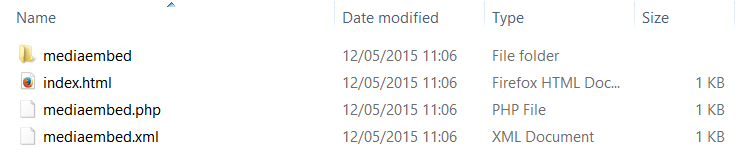
Open up an Ark Editor plugin that you have installed, for example the ‘Mediaembed’ plugin.
Copy the ‘index’ HTML document and paste it in your wordcount folder.
Copy the ‘Mediaembed’ XML document, paste it in your wordcount folder and rename it to ‘wordcount’.
You now need to edit the contents of the newly named ‘wordcount’ XML document.
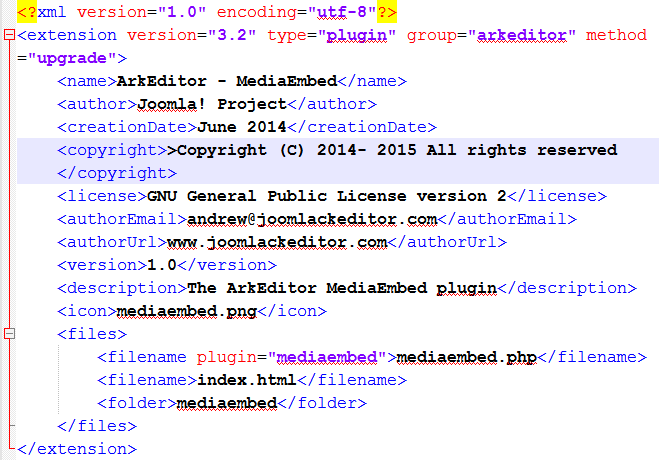
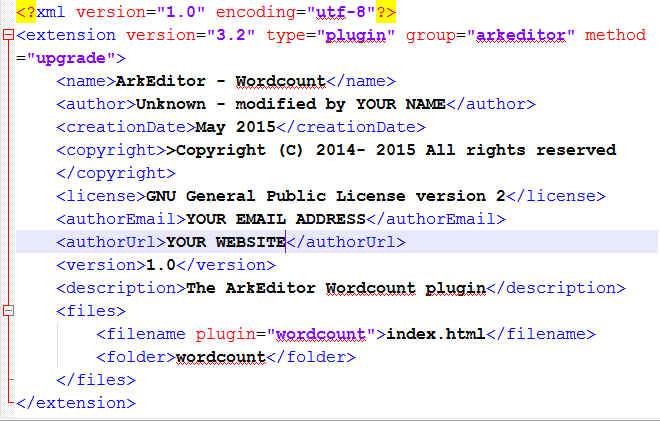
Right click on the ‘wordcount’ document and click on ‘Edit with Notepad+ +’or your favourite text editor. You will see the screen below.
You need to make the following alterations:
Change the ‘name’ from ‘MediaEmbed’ to ‘Wordcount’.
Change the name of the ‘author’ to the name of the author of the Word Count plugin (if this is not known, you can type ‘not known’) and add that it was modified by you.
Change the ‘creationDate’, to this month and year.
Change the ‘authorEmail’ and ‘authorUrl’, to your email and URL.
Under ‘description’, change the name to ‘The ArkEditor Wordcount plugin’ and add a description of what the plugin does.
As the Word Count plugin is a system plugin there is no button for it therefore it doesn’t require an icon so delete the line that begins with the icon tag.
As this is a basic plugin it won’t have a PHP file so you need to delete the line that begins ‘< filename plugin’.
On the next line add ‘plugin=“wordcount”’ to the ‘filename’ tag.
Finally, change the folder name to ‘wordcount’ and save the document.
Next, you need to compress your ‘wordcount’ folder, by right clicking on the folder and selecting ‘Send to’ > ‘Compressed (zipped) folder’.
You can now install the folder into the editor via ‘Extensions’ > ‘Extension Manager’.
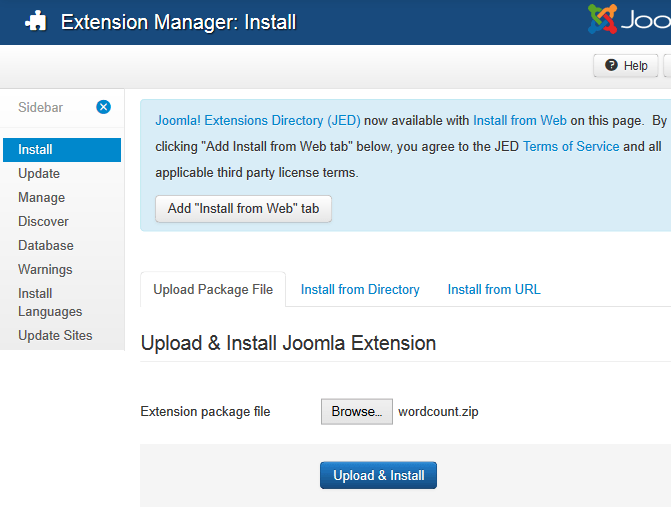
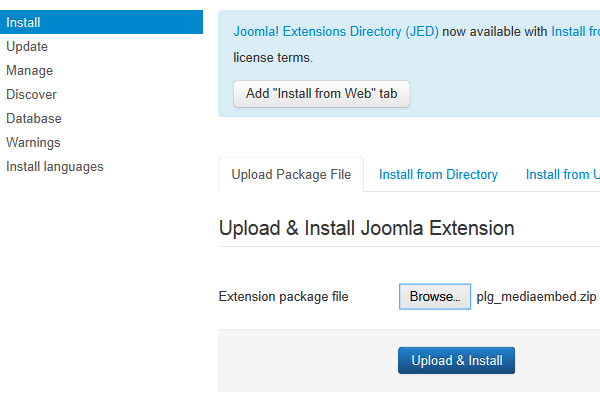
Under `Upload Package File’ click on `Browse...’, select the ‘wordcount’ Zip file and click on `Upload & Install’.
An Ark Editor plugin consists of an extension that interacts with the editor. These plugins or extensions are used to enable the user to quickly and simply customise or expand the functionality of the editor. This could be done to meet your needs, to portfolio images in a stylish gallery light-box or to expand the editor with media or image editing extensions. The possibilities are endless!
What's so great about it is that it works similar to Joomla’s stock installer so it’s very easy to install and you don’t have to be a developer to get started!
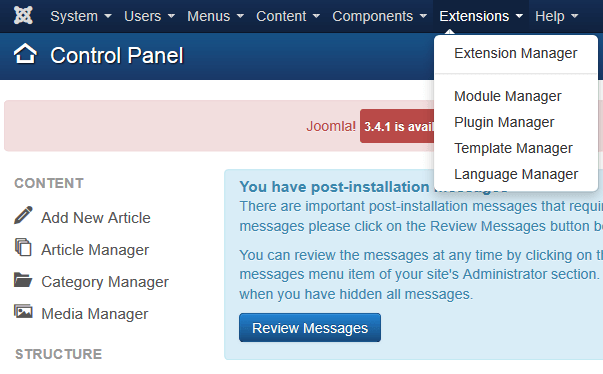
Navigate to Joomla's 'Extension Manager'. You can do this by going to 'Extensions' and clicking on 'Extension Manager'.
Under 'Upload Package File' click on 'Browse...', select the file and click on 'Upload File & Install'.
The system will now automatically install the Ark Editor package for you. Once completed it will inform you that the application has been successfully installed.
The Plugin manager allows users permissions to be setup on a plugin by plugin level. This permits greater flexibility across the system which in turn means that one toolbar layout can be used by multiple user groups!
To do this click on the 'Plugin Manager' button, select the toolbar plugin you want to edit and click to edit.
These parameters are found under the 'Editor Options' tab, as seen below.