End User Guide

Using Code Snippets (pre-formatted text)

Using Code Snippets (pre-formatted text)

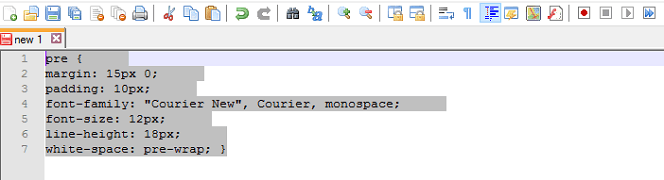
Sometimes when copying a snippet of code, you may want the editor to preserve your snippet, without formatting it. You can do this, by copying your code, into a < pre > formatted tag, that looks something like this, in HTML:

pre {
    margin: 15px 0;
    padding: 10px;
    font-family: "Courier New", Courier, monospace;
    font-size: 12px;
    line-height: 18px;
    white-space: pre-wrap;
}

This does more than just maintain the spaces. In most browsers, it is written in a Monospace font, making the characters in the text all equal in width.

Preserve your Code Snippets

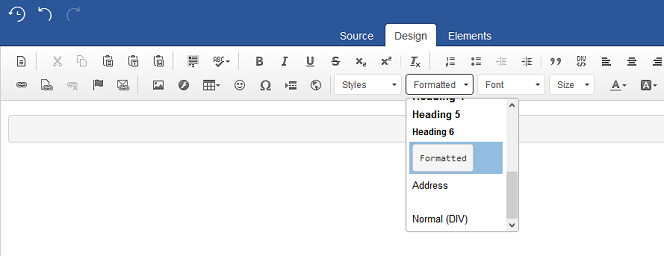
To do this, start by selecting, 'Formatted', from the drop-down list as seen below:
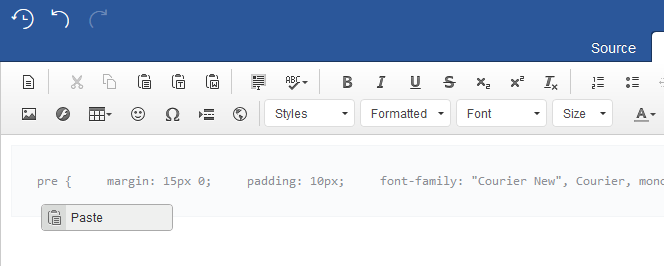
Next copy and paste your code into the container, to preserve your code formatting:
Read more: Using Code Snippets (pre-formatted text)

  • Hits: 28

Working inside Containers

Working inside Containers

In certain situations you may want to work within a container. It could be that you have applied a style to a p (paragraph) or div container and want to work inside it. The good news is that you can do this by using the 'Ctrl + Return' which will create a break return ‘<br>’ element within your paragraph.

This leaves no padding or margins between the two blocks of text created by the break return and will look something like this in your code:

<p>
    Heading 1<br />
    Heading 2<br />
    Tunc Tharsos vindicem a his auditorio iubet feci dicentes multa ei auri tecum ait. Tharsiam vis lacrimis 
    invidunt. Longe lateri rex in modo invenit quasi non ait mea ego
</p

This creates a newline within your container without breaking out of the p container.

It can be especially useful as you can build up interesting styles and bring more of a 'wow' factor to your content. Let's see how to do this by using the styles that come packaged in this particular Joomla editor.

Let's start by place your cursor on your p container and select a style from the drop-down List. You will notice that the 'bluebox-jck' style is then applied to the surrounding p container:

Read more: Working inside Containers

  • Hits: 27

Creating Tables

Creating Tables

Tables can be a powerful and easy way to arrange and display certain types of information. This is generally used for rendering data that belongs naturally in a grid, in other words where the data describes a number of objects that have the same properties.

Tables are defined with the <table> tag which is divided into rows, with the <tr> tags and each row is divided into cells, with the <td> tag.

This looks something like this in your HTML code:

<table border="1" width="50%">
    <tbody>
        <tr>
            <td>
                row 1, cell 1</td>
            <td>
                row 1, cell 2</td>
        </tr>
    </tbody>
</table>

Which would give you this when outputted in the editor's WYSIWYG view.

row 1, cell 1 row 1, cell 2

Creating tables

To create a table:

1. Click on the 'Table'‎ icon.

  1. Select your rows and columns from the grid.
  2. Click on the grid to insert the table.

Editing tables

You may want to tweek or re-edit the table, if so you can do this by selecting the table element. Generally the easiest way of doing this is to:

  1. Click on the table.
  2. Select 'table' from the element path inspector, please see below:
  1. Right click on the table.
  2. Select an action like ‘Table Properties’ from the menu.   

NOTE: You can also use this method to edit the table ‘tr’ and ‘td’ elements which will allow you to: add, edit and delete your table cells, rows and columns.

Now the 'Table Properties' window will pop up which is where you can customise some of the table’s settings.

  1. You can set the width and height of the table (Note: If your layout is responsive you may want to set it to 100%). You can align the table and add your 'caption' (which will add a header to the table).
  2. Click on 'OK' to apply your changes to the table.

Read more: Creating Tables

  • Hits: 38

Block Quotations

Block Quotations

A block quotation is a quotation that is set off from the main text as a paragraph, or block of text, and typically is distinguished visually, using indentation and a different typeface. Infact the Chicago Manual of Style, recommends using a block quotation online, when extracted text is 100 words or more, or at least eight lines.

In  HTML it looks like this:

<blockquote> The blockquote element defines a long quotation</blockquote>

and will look like this, when outputted, in the editor's WYSIWYG view.

Creating a Blockquote

To do this, start by selecting (1) a block of text in the editing area and then (2) select the 'Block Quote' button from the editor as seen below:

Read more: Block Quotations

  • Hits: 32